Find pending cases for a patient
Practitioners can track the diagnostic reports for a specific patient that have not yet been reviewed. This enables healthcare professionals to ensure that all necessary diagnostic reports reviewed in a timely manner.
Roles with permissions
Only users with the following roles can access this information:
- Administrator
- Chief of Service
- General Practitioner
- Specialist
From a diagnostic report
When reviewing a diagnostic report, practitioners can see other unreview cases from the same patient on the same date.
Step by step guide
- Open a diagnostic report.
- Look at the top bar, next to the date of the report.
- If there are multiple non-reviewed images from the same date, the following text will appear:
nmore pending on this date
Hidradenitis suppurativa in Right arm
- Click on
more pending on this datetext will open a new window with all the non-reviewed cases for that patient.
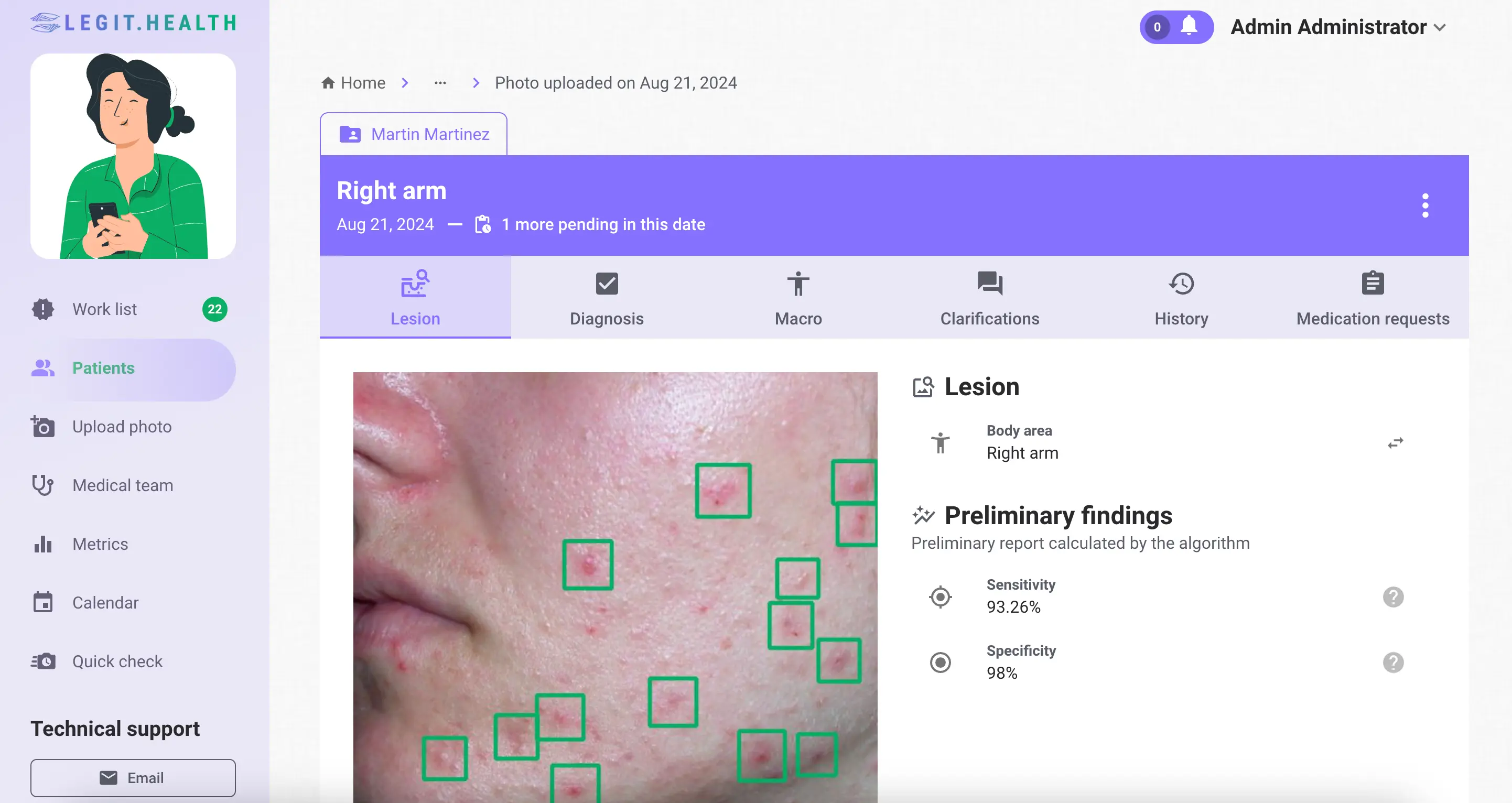
Example: Diagnostic report view with more pending non-reviewed diagnostic reports for a patient on a specific date
From the Work List
A practitioner can consult a list of all non-reviewed images for a specific patient from the Work list.
Step by step guide
- Go to the Work list section
- Filter by status: set the Status field to Unreviewed.
- Enter the patient's name in the patient search field
This will display a complete list of all non-reviewed images for that patient.
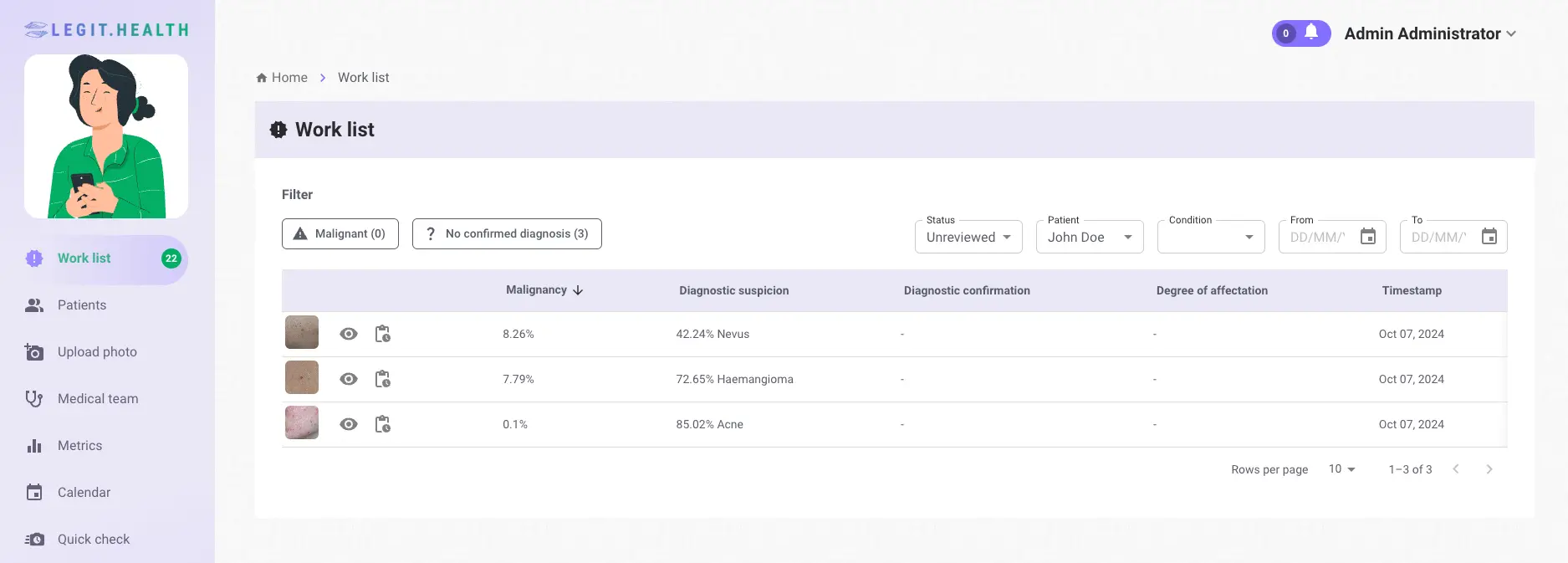
Example of a complete list of non-reviewed diagnostic reports for a patient
From the patient's profile
A practitioner can consult a list of all the images for a specific patient, including the non-reviewed ones.
Step by step guide
- Go to the Patients section.
- Using the search bar, enter the patient name, email or ID.
- Inside the patient's information section, open the tab Interactions.
This will display a list of all images for that patient.
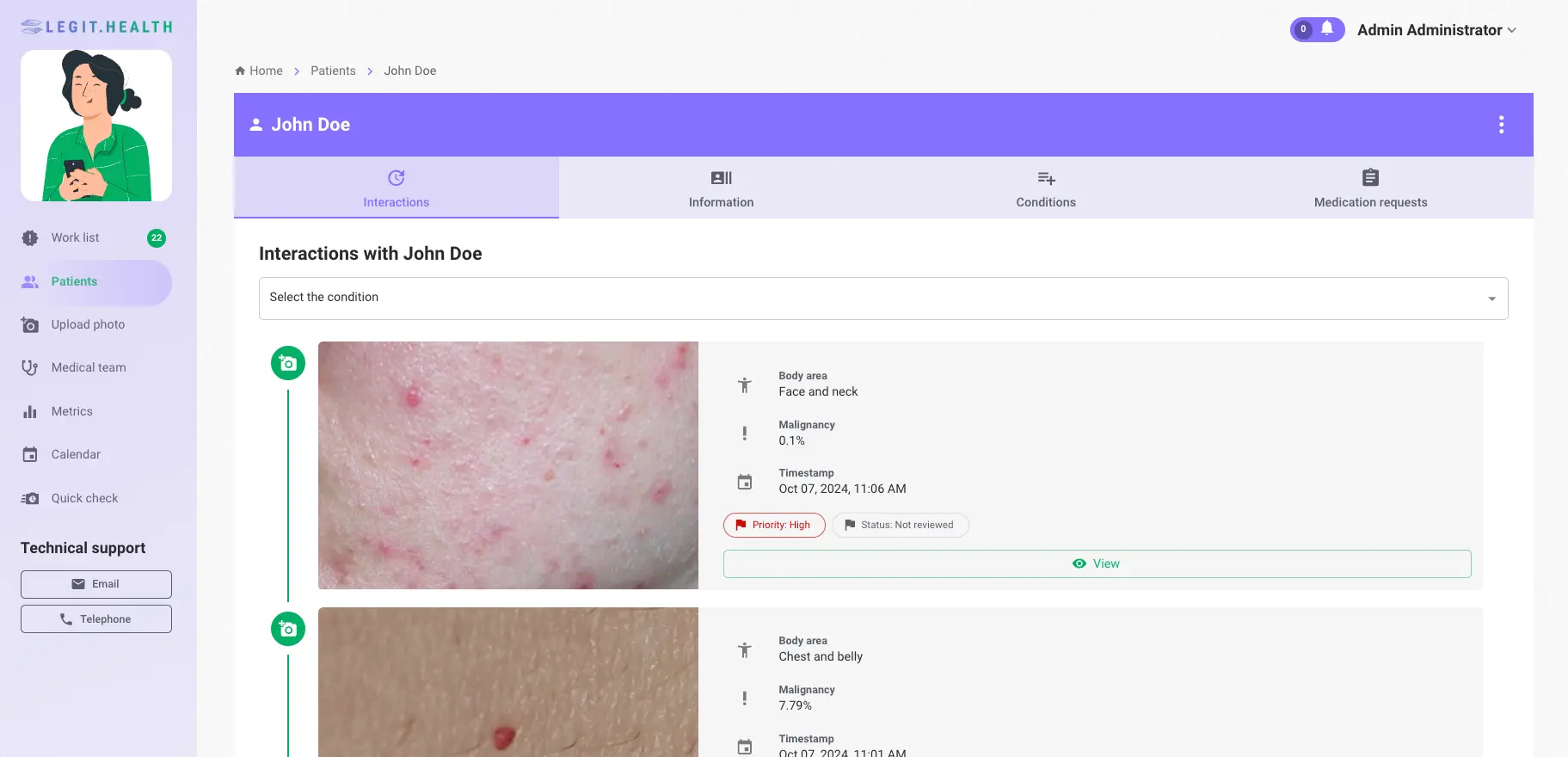
Example: Interactions view with a complete list of all the images for a patient